How Often Should You Scan Your WordPress Site? The Honest Answer.
Every outdated plugin on a WordPress site is an unlocked door — and automated bots try every handle on the internet, every day. This guide gives you the exact scan schedule for your type of site, shows what a real scan report looks like, and walks through updating safely without the fear.
Scan your WordPress site at least once a week. If your site takes payments or stores customer details, scan every day — automatically. Always scan right after updating a plugin, theme, or WordPress core. Monthly scanning is outdated advice: attackers exploit newly announced security holes within hours, so a monthly schedule can leave a known hole open for up to 29 days.
- Scan frequency by site type
- What a scan report shows
- How a WordPress security scanner works
- Security scanner vs security plugin
- Why monthly scanning isn't enough
- When to scan immediately
- What a scan can't catch
- Common scanning mistakes
- Afraid to update? The safe process
- Why WordPress gets attacked
- Should you leave WordPress?
- How WP Blazer helps
- Frequently asked questions
01Scan frequency by site type
There is no single right scanning frequency for every website. The correct schedule depends on how often your site changes and what an attacker gains by breaking in. A personal blog and a WooCommerce store carry very different risks — so they need different schedules.
| Your site | Scheduled scan | Also scan when… |
|---|---|---|
| Blog or simple business site | Once a week | You update any plugin or theme |
| Lead-generation site | Once a week | You change anything, or before running ads to it |
| Online store or membership site | Every day | Anything near checkout or payments changes |
| Agency-managed client sites | Every day + weekly review | A new client site is onboarded |
| Previously hacked site | Every day for 3 months | Anything looks unusual — traffic drops, unknown users |
| Recently copied or migrated site | Immediately, then weekly | Before AND after going live |
Daily sounds like a chore. It isn't — the scans run automatically. You just read the results with your morning coffee.
Source: WPBlazer scan database, [MONTH YEAR]. Most owners had no idea until they scanned.
02What a scan report shows you
A WordPress security scan produces a website security report: an overall score, a list of problems ranked by severity, and what to fix first. Here is a real report from the WPBlazer scanner, with the site's name hidden. The owner hadn't updated anything in months.
This flaw is publicly documented, and attackers already have a working exploit for it. In plain terms: a bot could upload a malicious file through the contact form and take over the site.
If this site gets hacked — or an update goes wrong — there is no restore point to fall back on. Everything would need rebuilding from scratch.
Nine outdated plugins didn't appear overnight. They accumulated one skipped week at a time — nine unlocked doors, added quietly. A regular scan catches these while the fix is still a click, not a crisis.
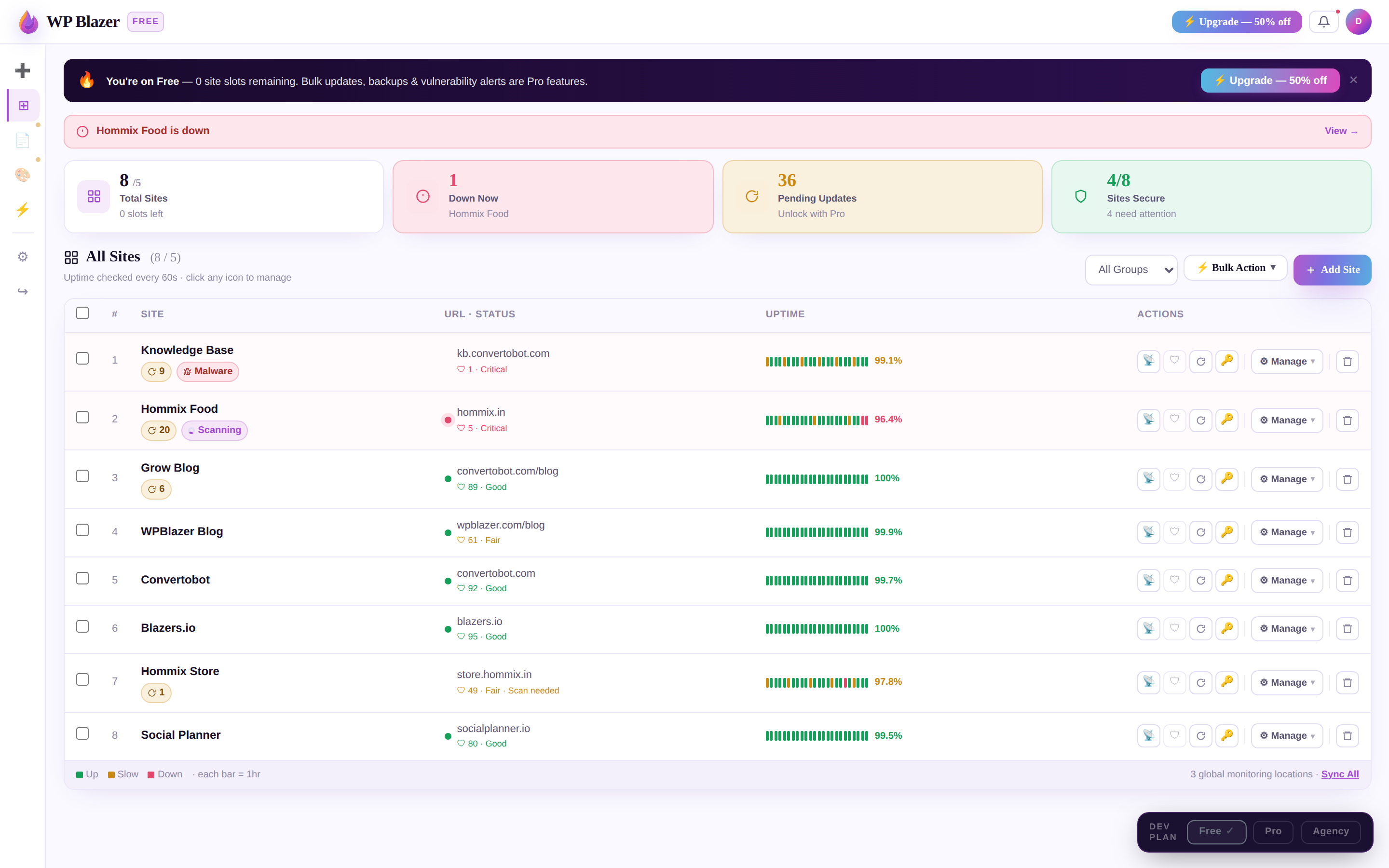
Finding problems is the hard part. Fixing them usually means clicking "update" — with a management dashboard, those nine plugins become one bulk action, with a backup taken first automatically:
03How a WordPress security scanner works
A WordPress security scanner reads your site from the outside — no login, nothing installed — and checks what it finds against databases of known problems. It detects your WordPress version and every visible plugin and theme, then compares each version against vulnerability databases like WPScan and the public CVE list. If you're running a version with a disclosed security hole, it flags it.
A good scanner checks more than version numbers:
- Malware signals — injected spam, suspicious redirects, code that shouldn't be there.
- Google blacklist status — whether Safe Browsing is already warning your visitors.
- Missing security patches — outdated core, plugins, themes, and end-of-life PHP.
- Login exposure — the doors brute-force bots hammer first.
- Speed — a security audit that ignores performance tells only half the story.
Twenty seconds later you have a score and a fix-first list. No magic — just databases and diligence.
04Security scanner vs security plugin — which do you need?
Both, because they see different things. An external security scanner checks your site from the outside, the way an attacker would. A security plugin watches your files from the inside. One without the other leaves blind spots.
External scanner
- Checks your site the way a visitor — or an attacker — sees it
- Nothing to install, no login needed
- Takes about 20 seconds, can't slow your site
- Detects versions, known holes, blacklist status, speed
- Run weekly minimum, and after every change
Security plugin
- Lives on your site, inspects files and database from within
- Finds malware that snuck past the front door
- Uses some server resources while running
- Usually scheduled for low-traffic hours
- Run weekly, daily for stores
05Why monthly scanning isn't enough anymore
Older guides recommend a monthly security scan. That advice is outdated. When a vulnerability in a popular plugin is publicly disclosed, attackers build automated exploits within hours — and bots begin hunting the entire internet for sites still running the old version. Security researchers at Patchstack recorded over 11,000 new WordPress vulnerabilities in 2025, up 42% year on year, and roughly 13,000 WordPress sites are hacked every day.
The maths is simple. On a monthly schedule, a hole disclosed the day after your scan stays open for up to 29 days:
Short windows beat long windows. That's the entire argument.
06When to scan immediately — no matter the schedule
Scheduled scans catch slow decay. Event-triggered scans catch sudden openings. Run a scan on the spot when any of these happen:
- You update or install a plugin or theme. The #1 way sites get hacked — thirty seconds of checking is cheap insurance.
- You update WordPress core. Confirm everything completed properly.
- You copy, move, or restore your site. Old copies quietly bring back old, unsafe plugin versions. See our guide to cloning a WordPress site safely.
- Your traffic suddenly drops. Often the first sign you've landed on the Google blacklist — the kind of dip website monitoring catches automatically.
- Google shows a warning. "This site may be hacked" is Google Safe Browsing talking. Scan now, and check Search Console.
- Your host emails about malware or unusual activity.
- You spot something you didn't create. A new admin user, an unfamiliar page, files with odd names.
07What a security scan can't catch
A scanner checks locks, and it is very good at that. But no scanner can promise everything. Being honest about the limits is part of using scans well:
- Zero-days. Scanners work from databases of disclosed vulnerabilities. A hole discovered by attackers but not yet made public won't be in any database. Rare, but real.
- A weak password. Brute-force bots guess millions of passwords a day. No scan fixes a bad password — a long one plus two-factor login does.
- A stolen admin login. Someone with your keys walks straight through a locked door. Review your user list regularly.
- Hosting-level problems. If the building itself has issues, the locks on your unit only help so far. Choose hosting with a strong security record.
The full picture is scans plus updates plus backups plus strong passwords. The scan is the check-up, not the cure.
08The four scanning mistakes we see most often
- Scanning monthly and calling it done. Up to 29 unlocked days per hole.
- Seeing "9 plugins outdated" and looking away. A report you ignore is a report you didn't run.
- Updating without a backup. One bad update with no restore point turns a five-minute fix into a lost weekend.
- Trusting the inside scan alone. Malware already in the house hides from house tools. Keep the outside opinion.
09Afraid to update? The safe process
Most sites end up with nine outdated plugins not because owners are lazy, but because updating feels risky. Everyone has heard a story of an update taking a site down. Each of the three common fears has a simple, safe answer.
Never update without a backup — and make sure the backup actually works. An untested backup is a hope, not a plan (see our backup best practices). With a verified restore point, the worst case of any update is fifteen minutes of restoring, not a dead site. Most hosting companies will even do the restore for you if you ask.
Usually two plugins — or a plugin and your theme — conflicting after a change. The real mistake is updating everything at once: something breaks and you have ten suspects. Update one plugin at a time and check your site after each. If something breaks, you know exactly which update did it, and you roll back just that one.
Flip it around: an update might cause a small glitch you fix in minutes. An outdated site risks what you can't fix in minutes — a hacked site serving spam, a red Google warning, and lost trust with every customer who sees it. Regular scans plus timely updates is how you protect your visitors.
10Why WordPress gets attacked so much
WordPress is not an unsafe platform — it is the biggest target with the most public blueprint. Three factors combine: the code is open source, so anyone can study it for weak spots. It powers over 40% of all websites (W3Techs), so one plugin flaw affects hundreds of thousands of sites at once. And the attacks are automated — bots hunt for known, unpatched holes rather than choosing targets.
Your site doesn't need to be famous to be attacked. It just needs to be outdated. An updated WordPress site is a hard target; an outdated one is a statistic. Staying updated is the security model — and too many owners learn that difference the expensive way. You don't have to.
11Should you just leave WordPress?
Not abruptly — and not for security reasons alone. If your site already has traffic and pages ranking in Google, migrating platforms is one of the riskiest moves you can make. Done wrong, rankings that took years to build can vanish in a week. A migration only makes sense when it's planned properly: every page mapped, every old link redirected to the right new one.
- Keep your current site updated and scanned. That protects the traffic and rankings you already own — everything in this guide applies from today.
- Plan the next move calmly, not out of fear. Your next website — a new project, redesign, or second brand — is the natural moment to consider a platform where security isn't your job.
12How WP Blazer helps
Everything in this guide — scheduled scans, backup-first updates, one-at-a-time rollouts — is a routine. WP Blazer runs that routine automatically across all your sites:
Vulnerability scanning
Daily off-host backups
One-click bulk updates
Take 20 seconds. Check your locks.
Run the free scan, see your score, then put your site on the schedule from the table above. No signup, nothing installed, your site is not touched.
Scan my website free